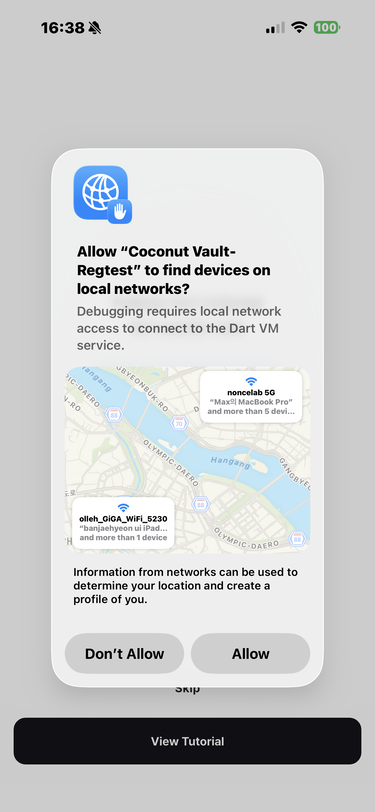
Start Coconut Vault
Open the Coconut Vault app to begin creating a wallet.
Coconut Vault handles your mnemonic recovery phrase, so the device must remain offline while the app is running.
When you open the app for the first time, it explains the offline-use requirement. Tap Check environment.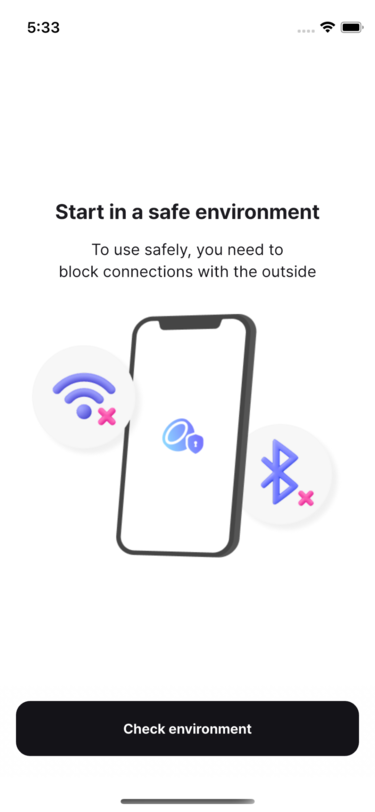
The app checks the device's external connections. The left image shows the blocked state while network and Bluetooth communication are enabled. Once the network is disconnected and Bluetooth is disabled, the Next button becomes available as shown on the right. Tap Next to continue.
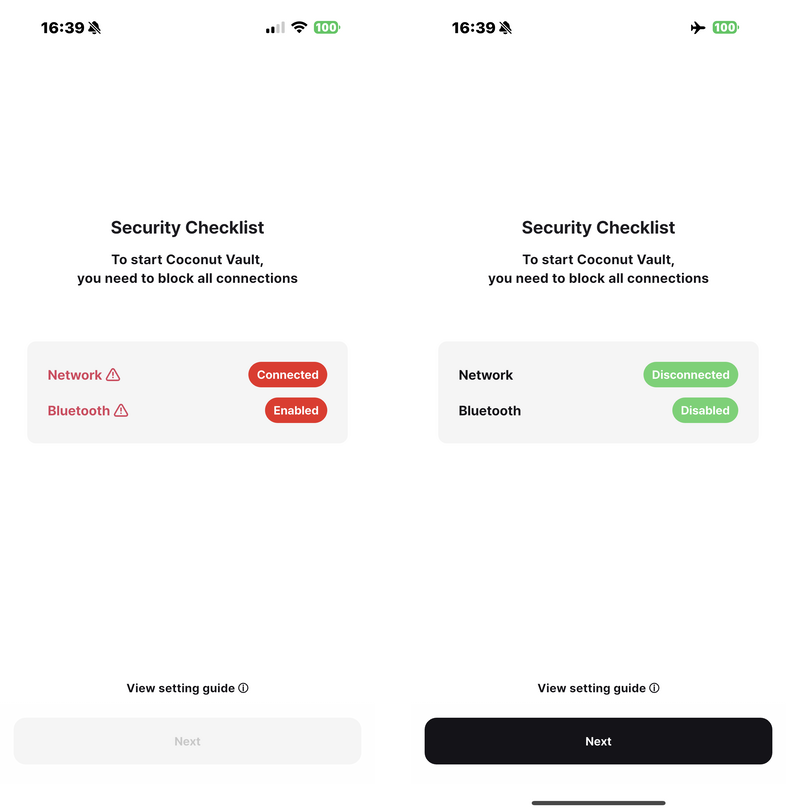
Before and after disabling network and Bluetooth connections
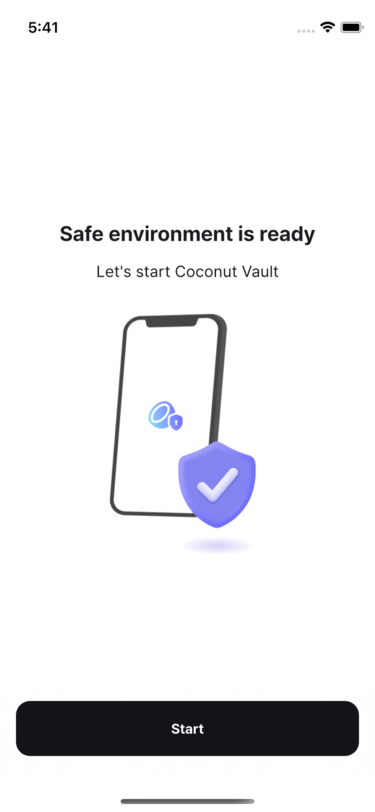
The secure environment is now ready. Tap Get started to continue.
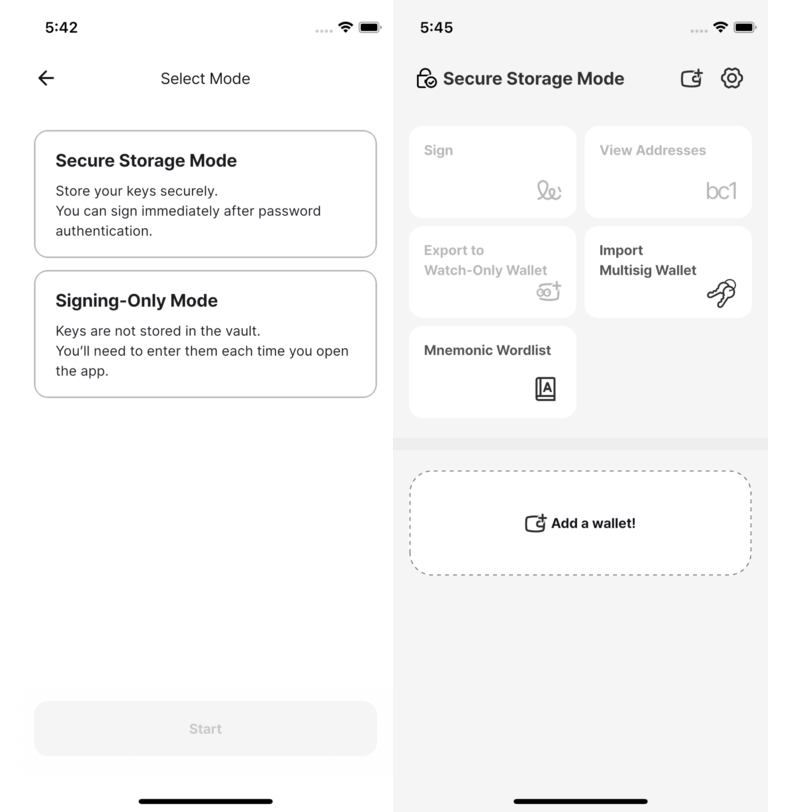
Choose how you want to use Coconut Vault, then tap the button to enter the selected mode.
Choosing a Vault mode
- Secure storage mode: Stores the mnemonic and keys using the phone's secure hardware. You can close and reopen the app without importing the key again. Conceptually, this is similar to the internal storage used by hardware wallets such as Keystone and Coldcard.
- Signing-only mode: Does not store keys in Coconut Vault. Each time you open the app, you import or enter a key before signing.
Why does Coconut Vault request Bluetooth permission?
Coconut Vault checks that the device is offline. Bluetooth permission is required only to verify that Bluetooth is disabled.
Allow the permission if the prompt appears when the app starts. Coconut Vault does not enable, disable, or otherwise change the device's Bluetooth settings. It uses the permission only to check the connection state.