
Add a Watch-Only Wallet
Now add a watch-only wallet to Coconut Wallet. This synchronizes the wallet you added to Coconut Vault in the previous step. You can also add a wallet from a supported hardware wallet.
- Supported hardware wallets: Keystone 3 Pro, SeedSigner, Jade, Coldcard, and Krux
1️⃣ Export from Coconut Vault
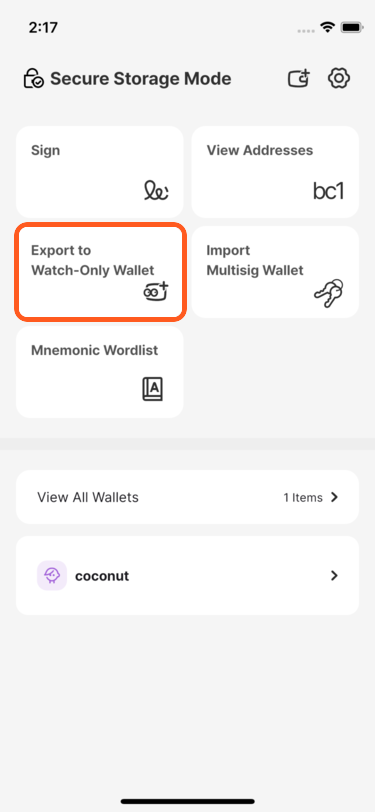
On the Vault home screen, select Export to Watch-Only Wallet.
If the Vault contains more than one wallet, select the wallet you want to export.
Select the watch-only wallet app you want to use. For this tutorial, select Coconut Wallet.
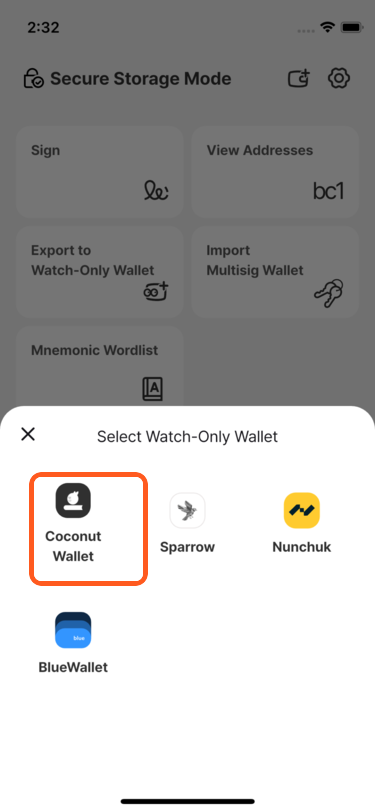
Compatible watch-only wallets
Coconut Vault supports Coconut Wallet, Sparrow, Nunchuk, and BlueWallet. Select an app to see instructions for importing the wallet into it.
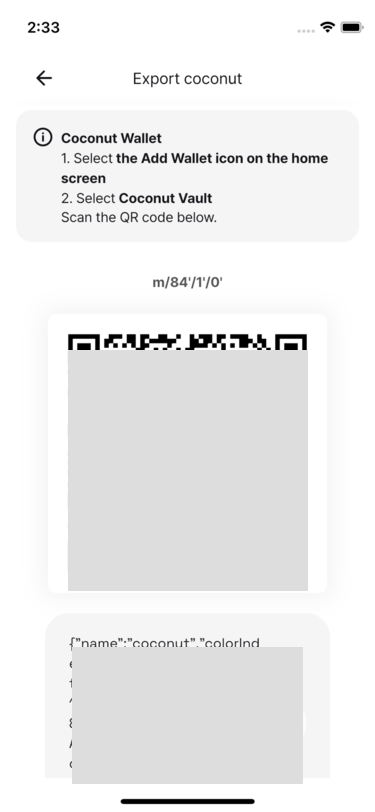
A QR code appears with export instructions.
2️⃣ Add the Watch-Only Wallet to Coconut Wallet
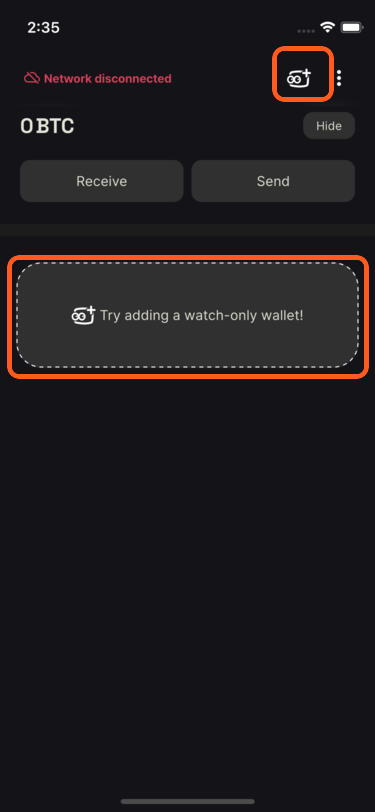
On the Coconut Wallet home screen, tap Add Watch-Only Wallet in the upper-right corner, or tap the empty-state button inviting you to add one.
Select Coconut Vault.
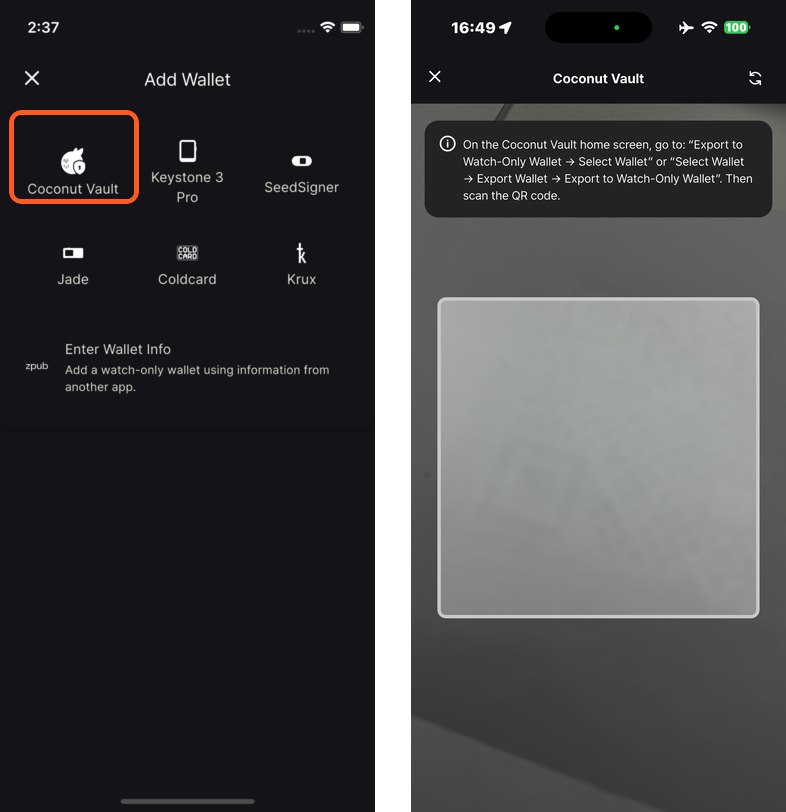
Compatible hardware wallets
Coconut Wallet supports Coconut Vault, Keystone 3 Pro, SeedSigner, Jade, Coldcard, and Krux. The scan screen explains what to export from each device.
Scan the QR code displayed by Coconut Vault in the export step above.
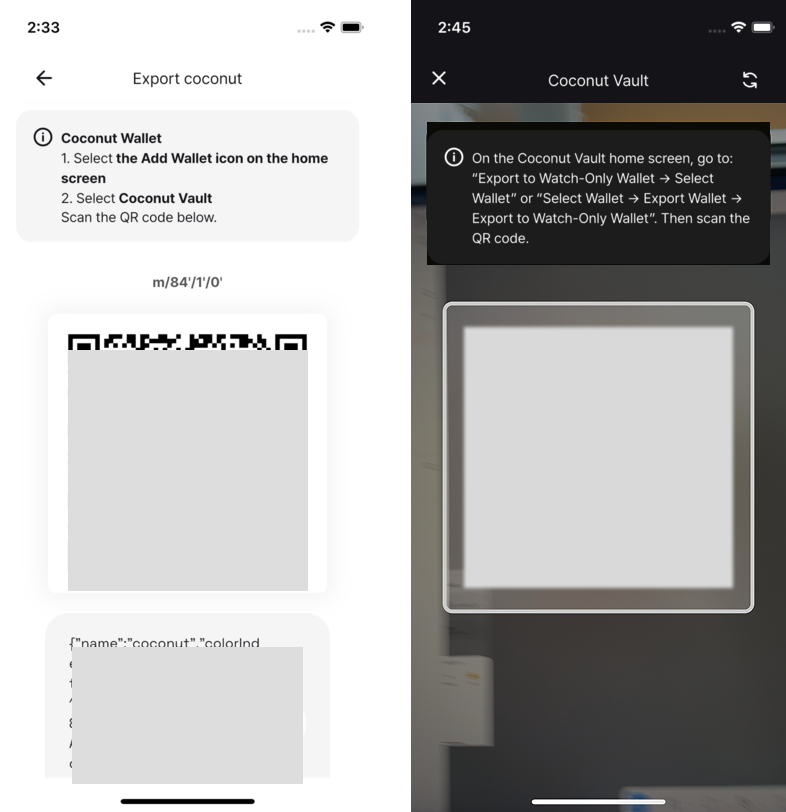
After scanning, the watch-only wallet is added and synchronization begins.
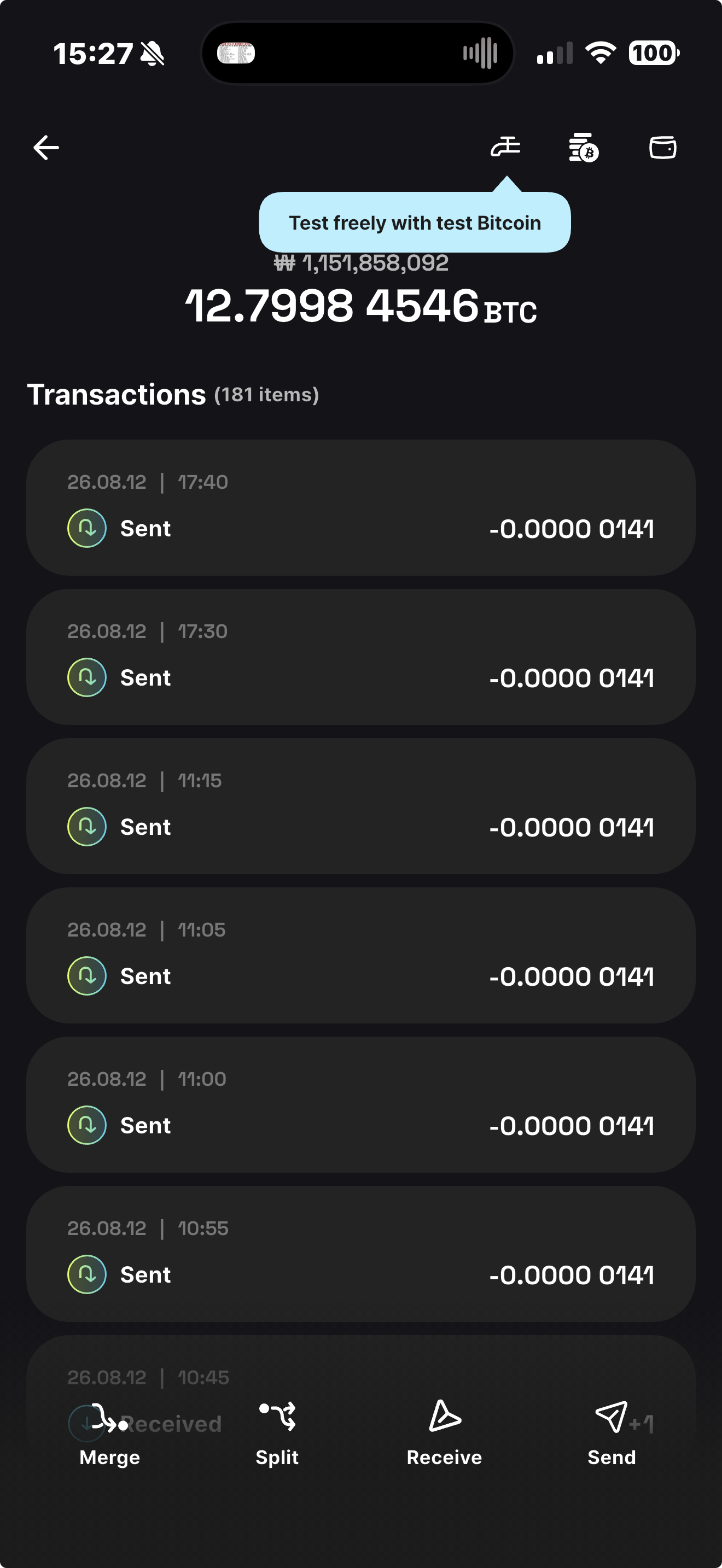
Compare the imported wallet with the wallet in Coconut Vault. Verify the name, icon, color, and especially the wallet ID[1].
Q. What is a wallet ID?
The wallet ID is also called the master fingerprint (MFP). It is derived from the master public key and serves as a short identifier for the wallet.
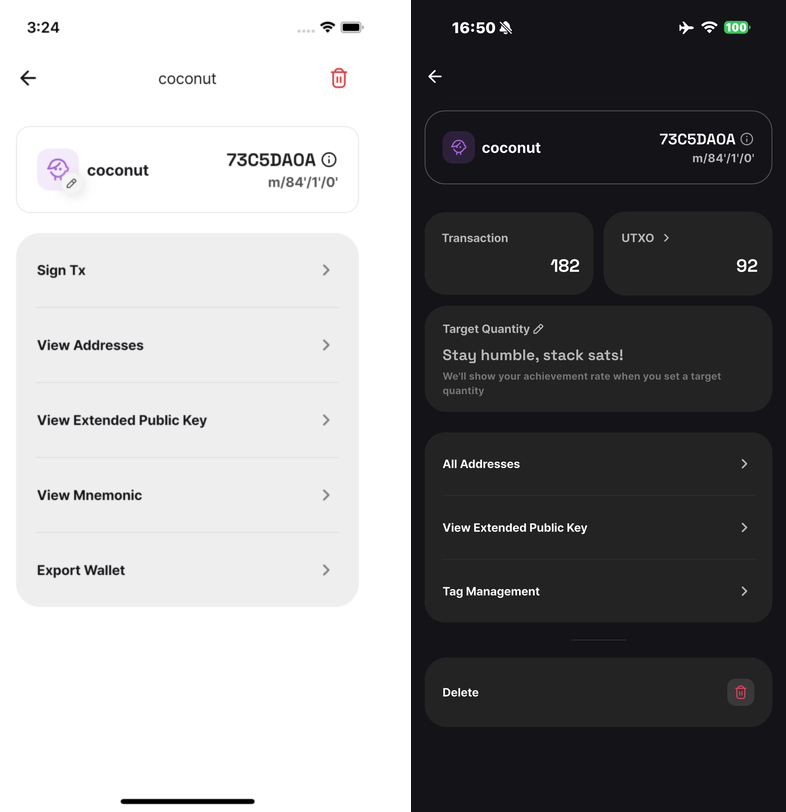
The wallet ID, or master fingerprint, is derived from the master public key and uniquely identifies the wallet. ↩︎