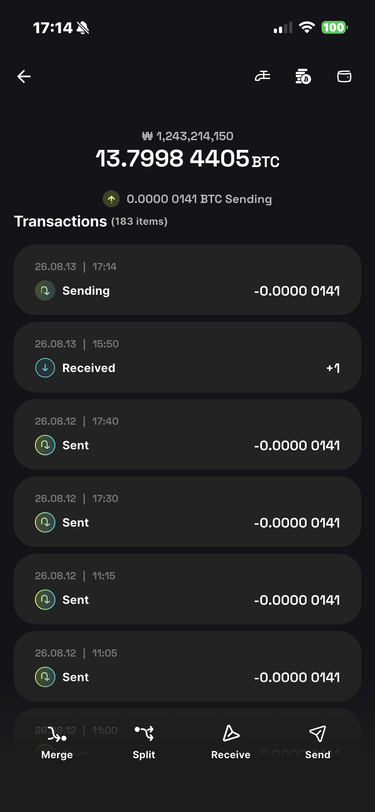
Send a Transaction
The transaction flow has three stages:
- Create the transaction in Wallet.
- Transfer it to Vault and sign it.
- Return the signed transaction to Wallet and submit it to the network.
1️⃣ Create the Transaction in Wallet
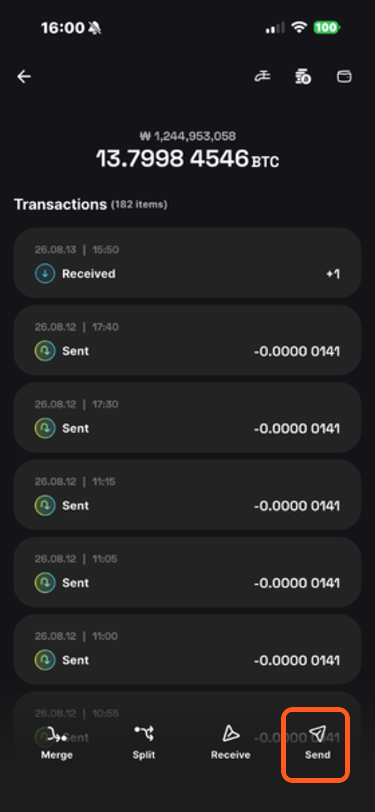
On the Wallet home screen, select the wallet you want to use. In the wallet details, tap Send.
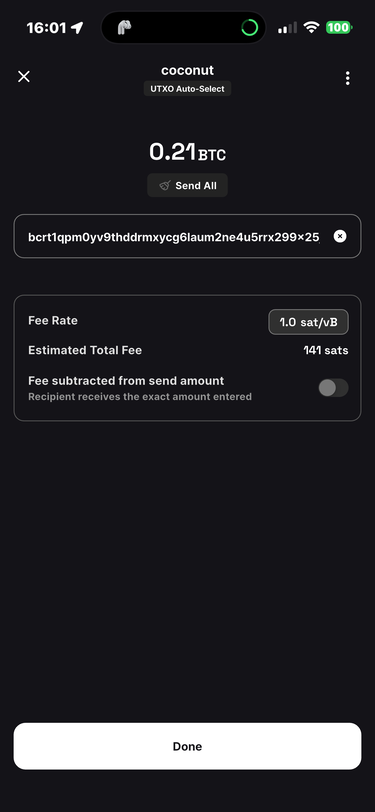
Enter the receiving address and amount. When the amount, address, and fee rate are valid, tap the enabled Done button.
- Swipe the amount card from right to left to add another recipient.
Q. Why are all speed options the same price on the training network?
Fee rates depend on network demand. Coconut's training network is usually uncongested, so fast, normal, and slow options may all use the same minimum fee rate.
Q. What does sat/vB mean?
- vB (virtual byte): A unit representing how much block space a transaction occupies.
- sat/vB: The number of satoshis paid per virtual byte. A 100-vB transaction at 10 sat/vB pays a 1,000-sat fee.
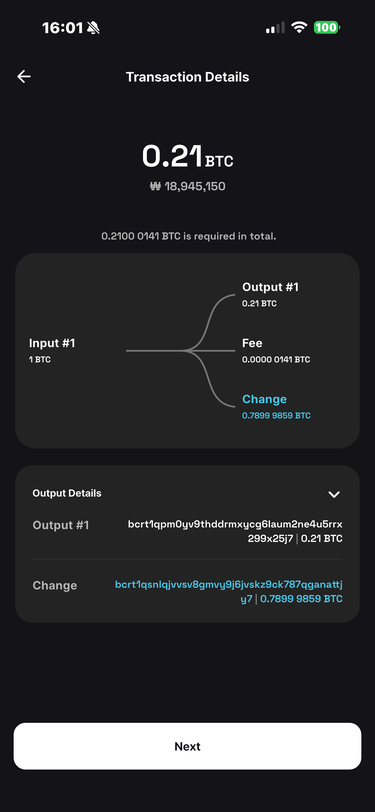
Review the transaction and tap Next.
An animated QR code appears. It contains the unsigned transaction that must be transferred to Vault.
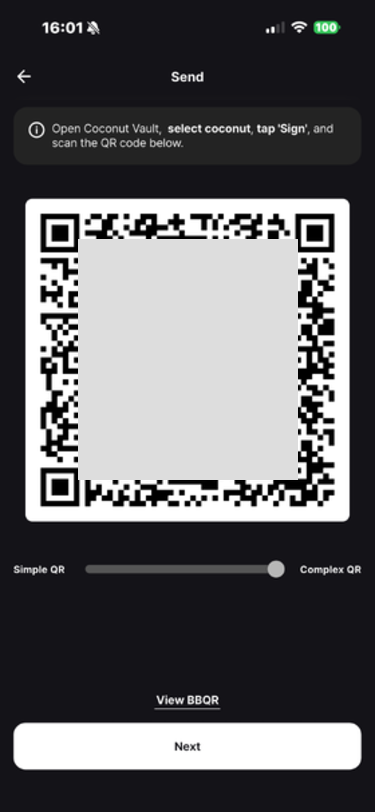
2️⃣ Sign with Vault
On the Vault home screen, tap Sign.
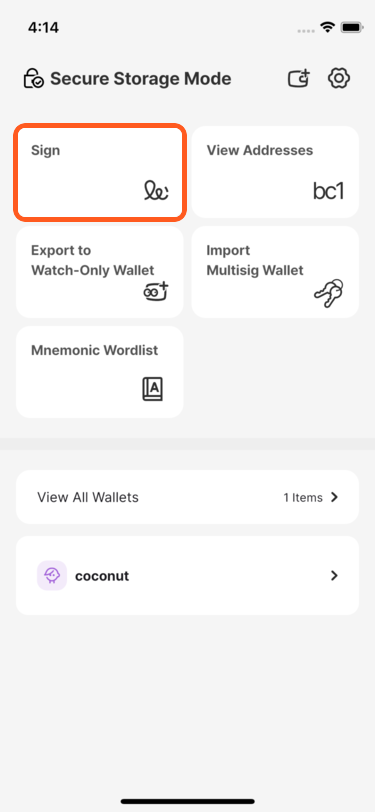
The camera opens to scan a QR code.
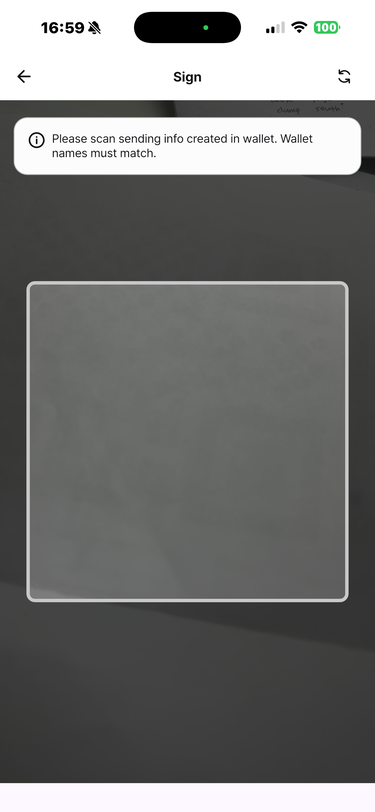
Scan the animated QR code displayed by Wallet.
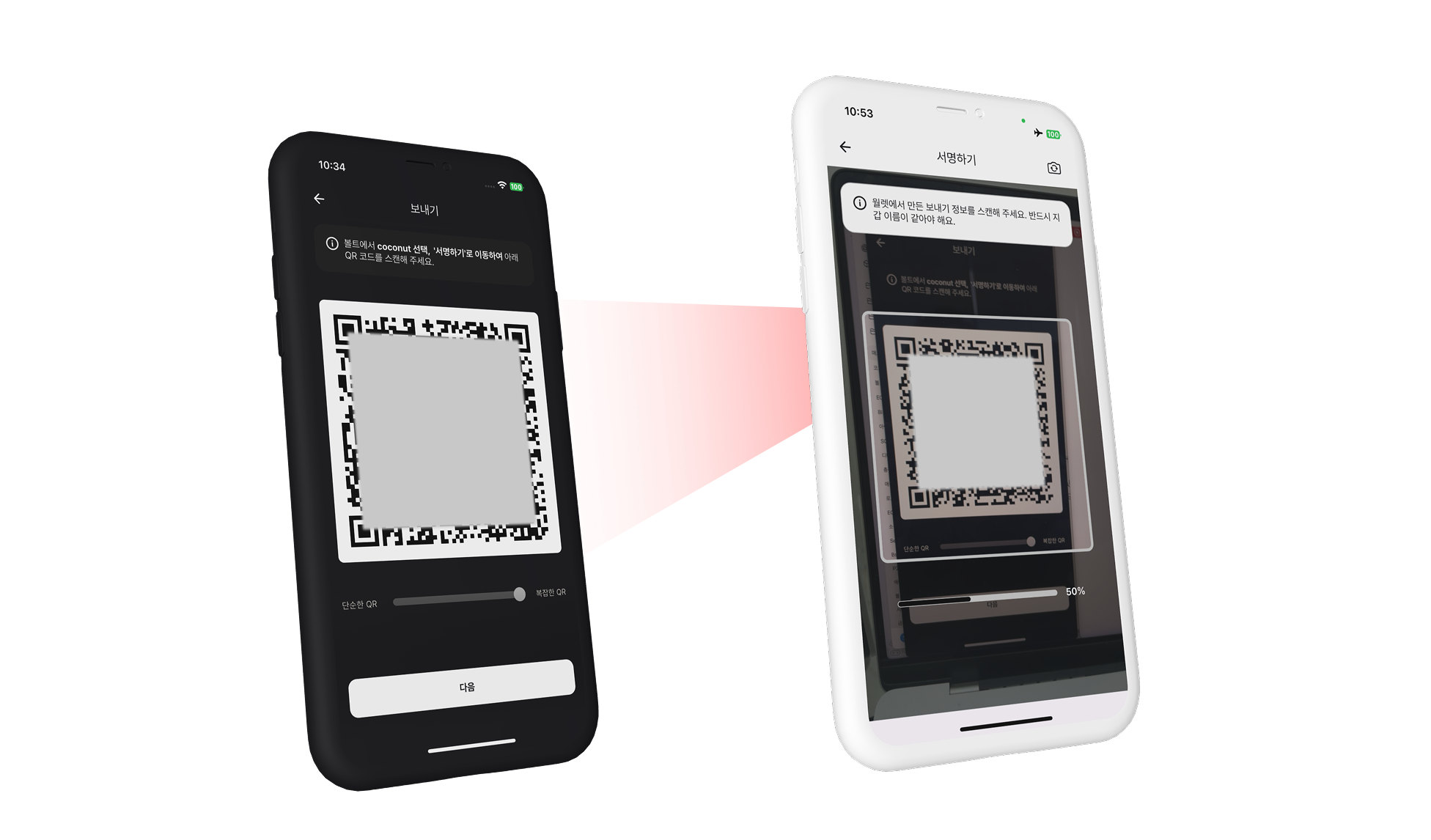
If Vault contains the required signing key, the transaction is imported. Review the details and tap Next.
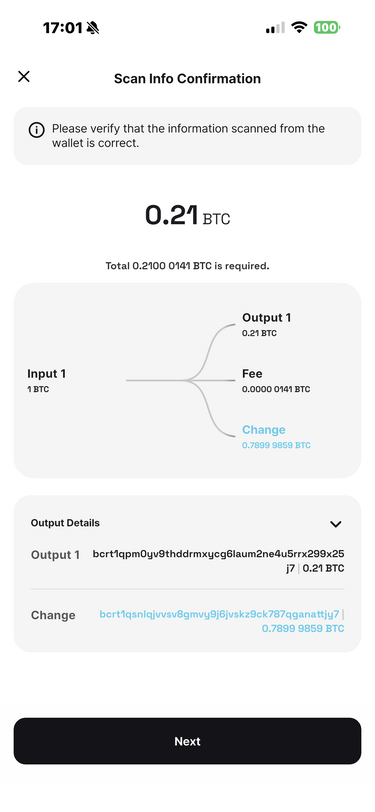
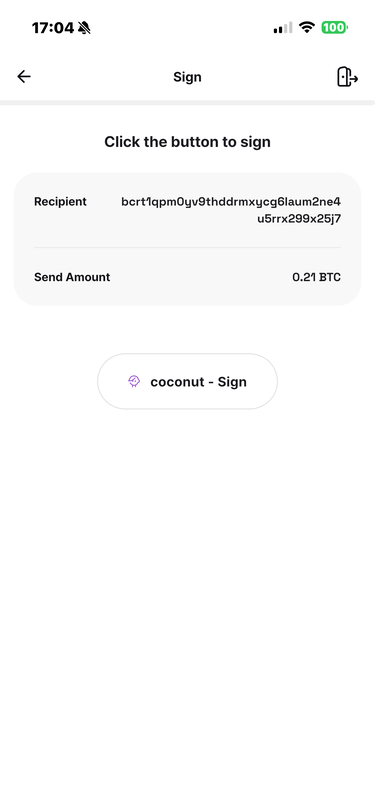
On the signing screen, tap Sign. When signing is complete, tap Next.
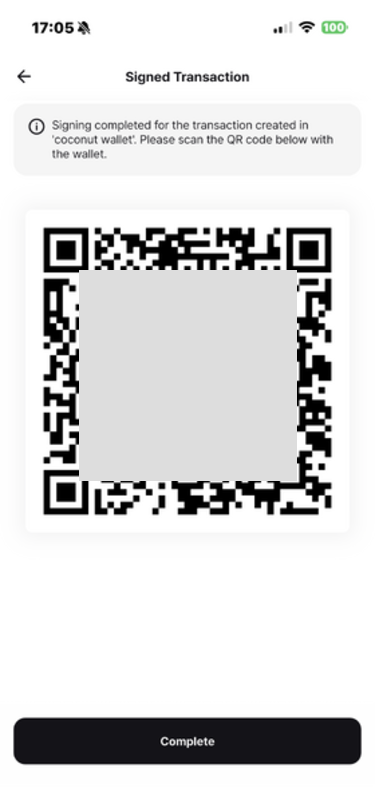
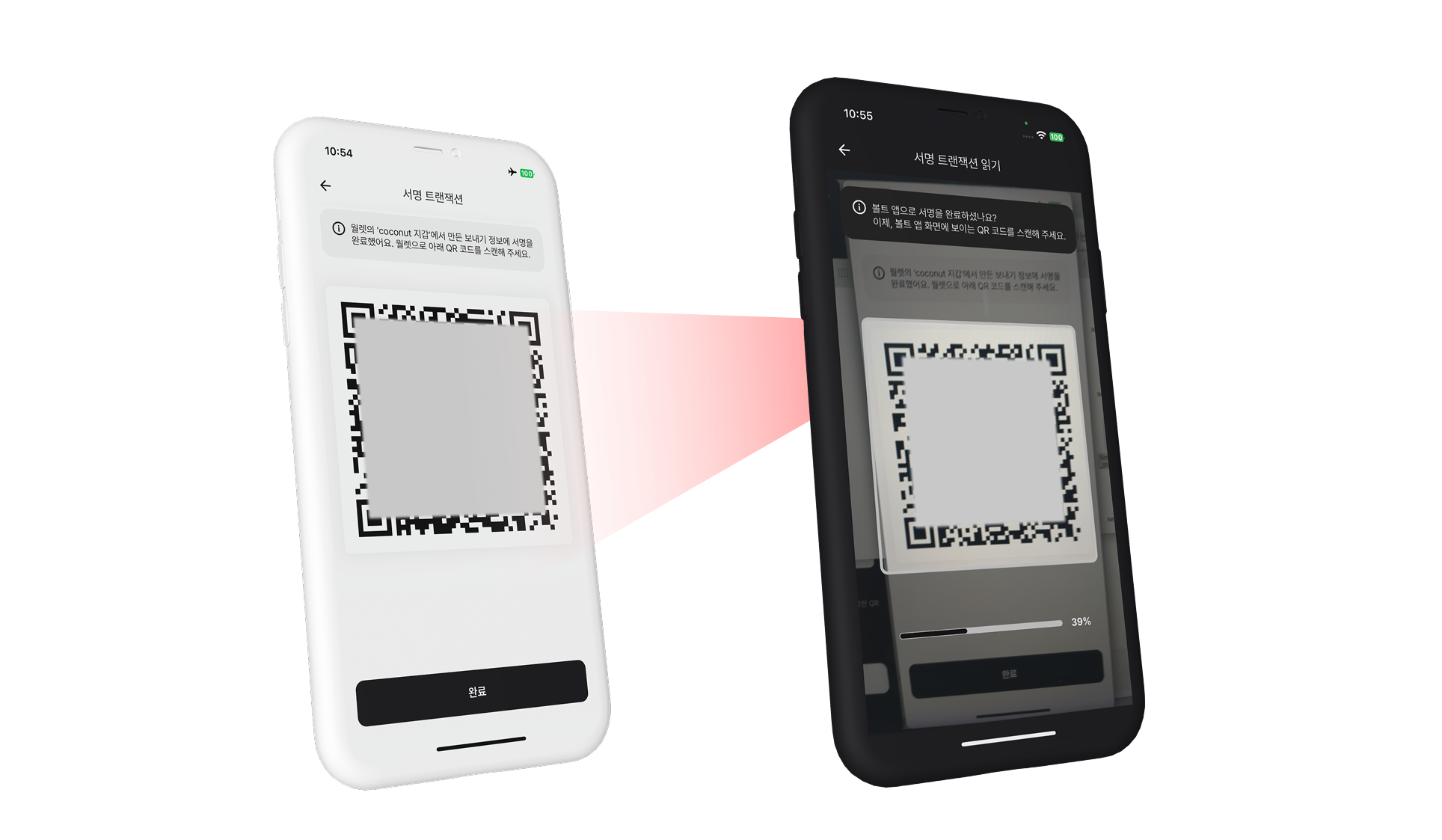
Vault displays an animated QR code containing the signed transaction. Return it to Wallet for network submission.
3️⃣ Submit the Signed Transaction
In Wallet, open Scan Signed Transaction. The camera starts.
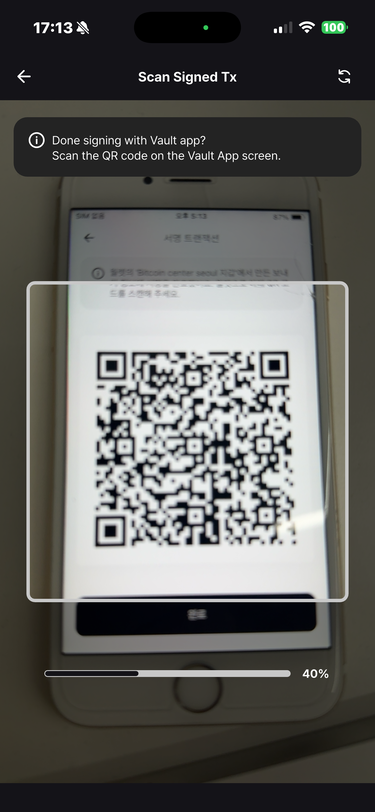
Scan the signed transaction QR code displayed by Vault.
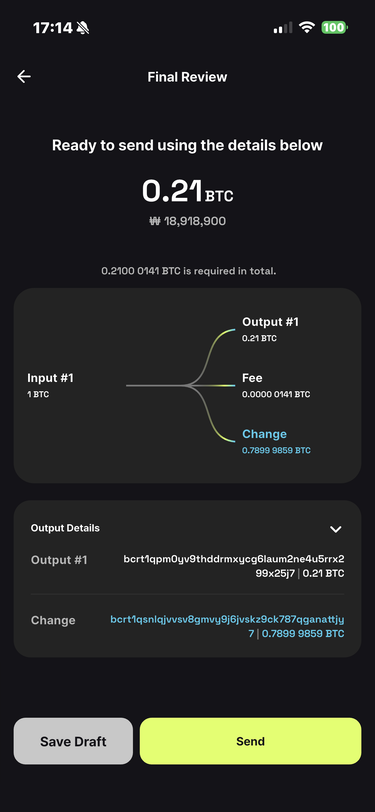
Review the signed transaction one last time. Tap Send to submit it to the network.
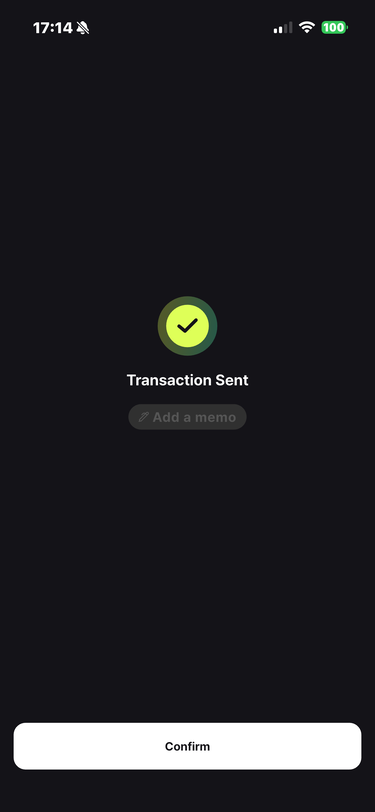
The submission request is complete.
The new transaction appears in the transaction list.