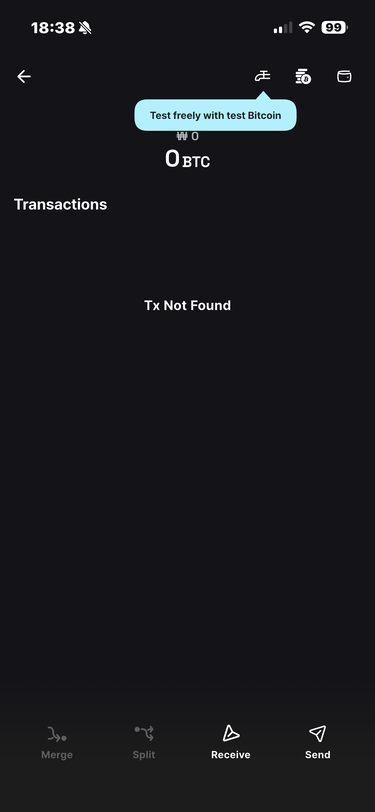
Add a Multisig Wallet
Now that you are familiar with signing transactions using a single mnemonic phrase, it is time to create a multisig wallet.
You will need multiple Vault instances or hardware wallets for this exercise.
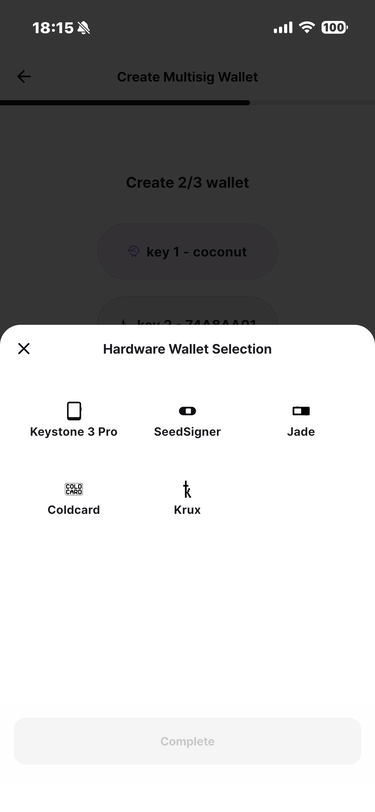
Supported hardware wallets: Keystone 3 Pro, SeedSigner, Jade, Coldcard, and Krux.
We will create the commonly used 2-of-3 configuration with Coconut Vault, Keystone 3 Pro, and SeedSigner.
Create a 2-of-3 multisig wallet
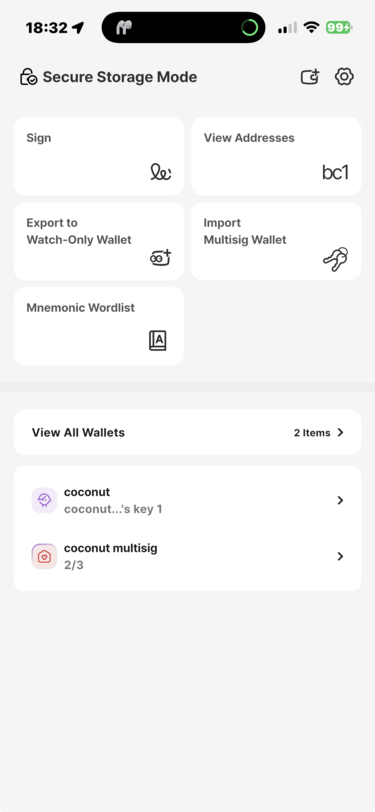
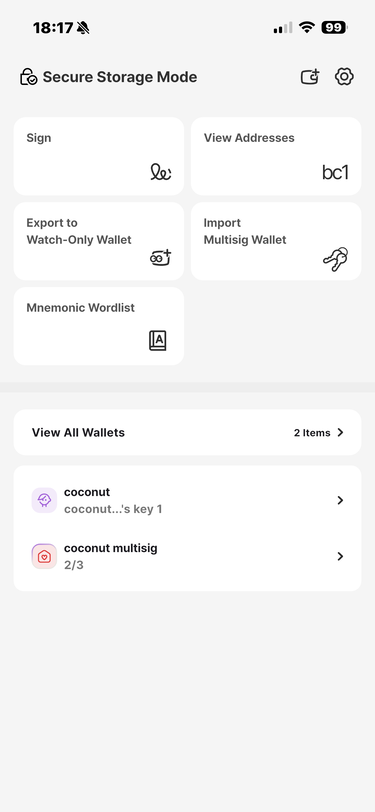
On the Vault home screen, tap [Add Wallet] in the upper-right corner.
Select [Multisig Wallet].
Because you are creating a new setup, tap [Create a New Wallet].
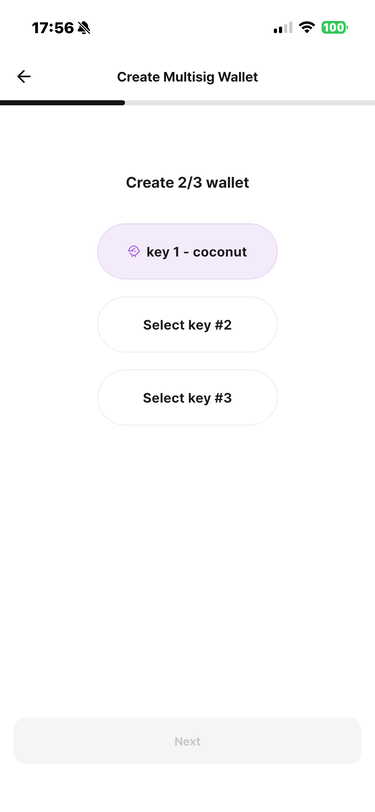
Set the total number of keys to 3 and the required number of signatures to 2.
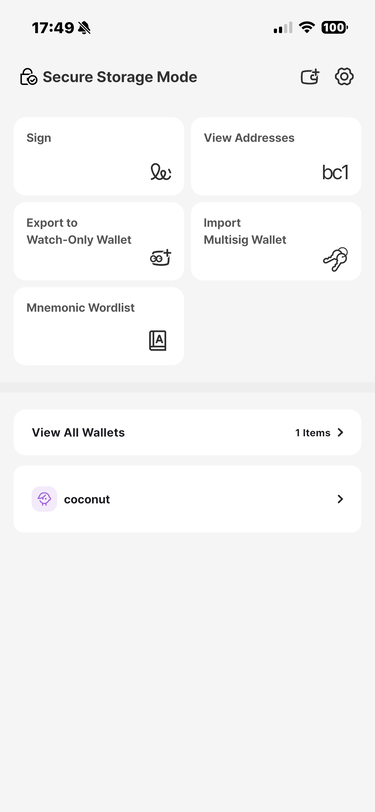
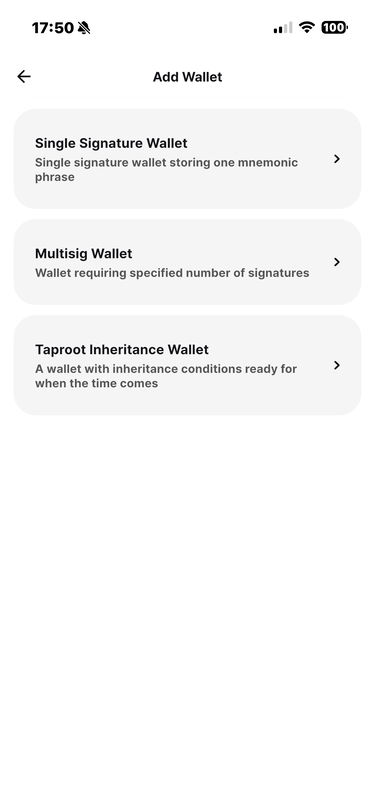
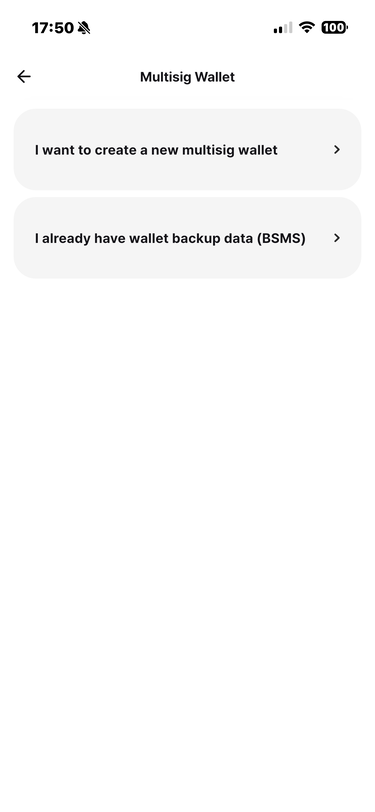
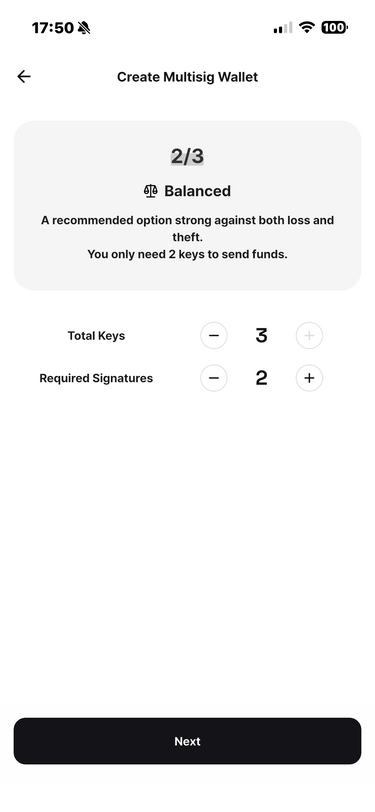
Why is the total number of keys limited to three?
The original BIP-16 P2SH standard permits up to 15 keys. In practice, relay policy applies stricter limits to protect network performance and reduce abuse. Bitcoin Core limits standard bare multisig to three public keys, and Coconut follows this limit.
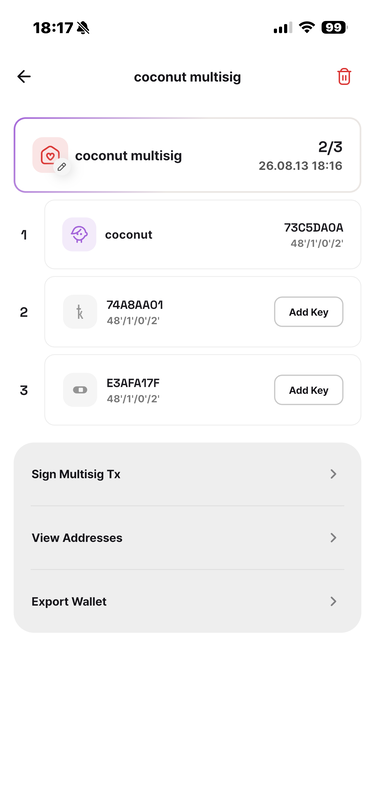
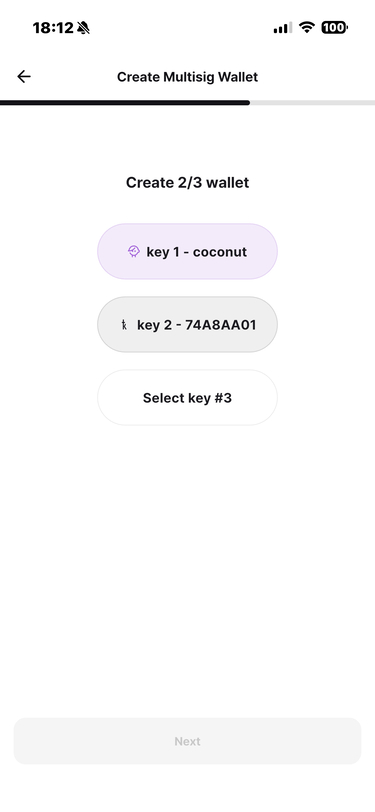
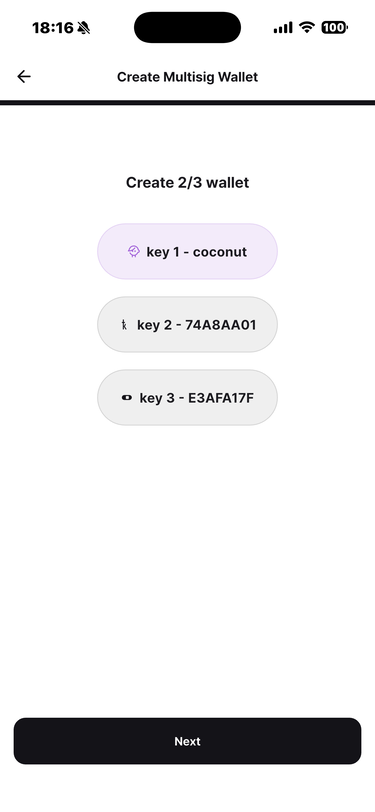
Choose the keys for the multisig wallet. For each key, you can use a key from this Vault, import from another Vault, or import from a hardware wallet.
Key 1: Use a key from this Vault → select a single-signature wallet
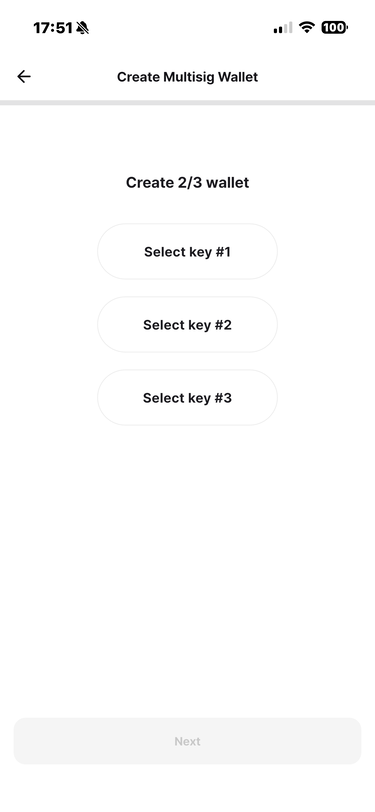
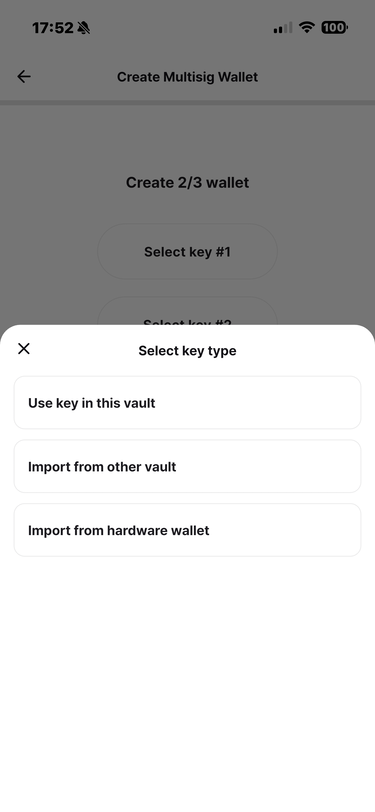
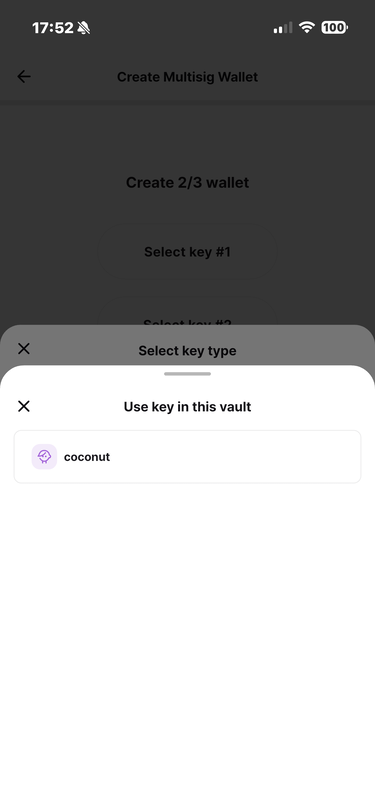
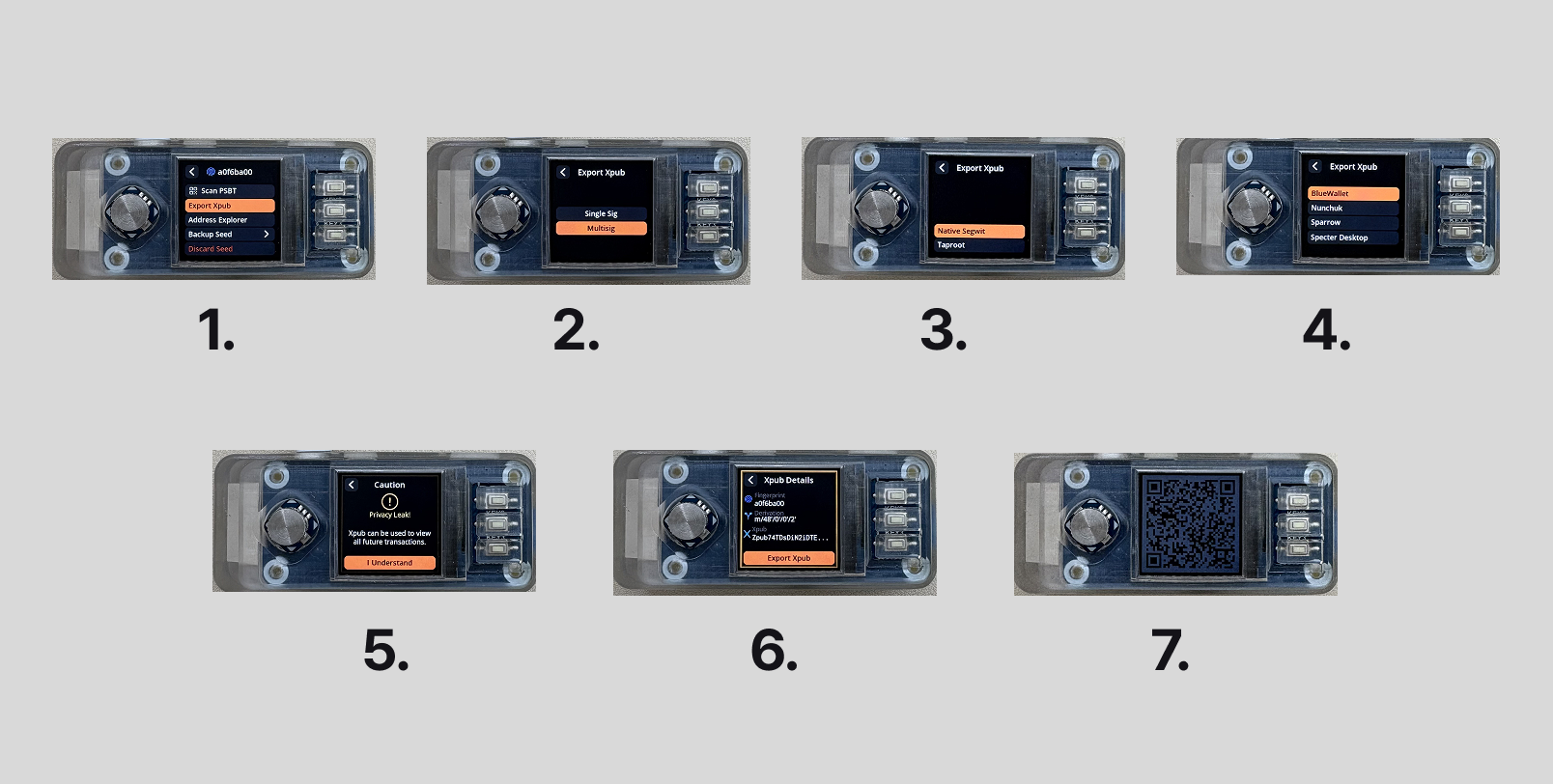
Key 2: Import from a hardware wallet (Keystone 3 Pro)
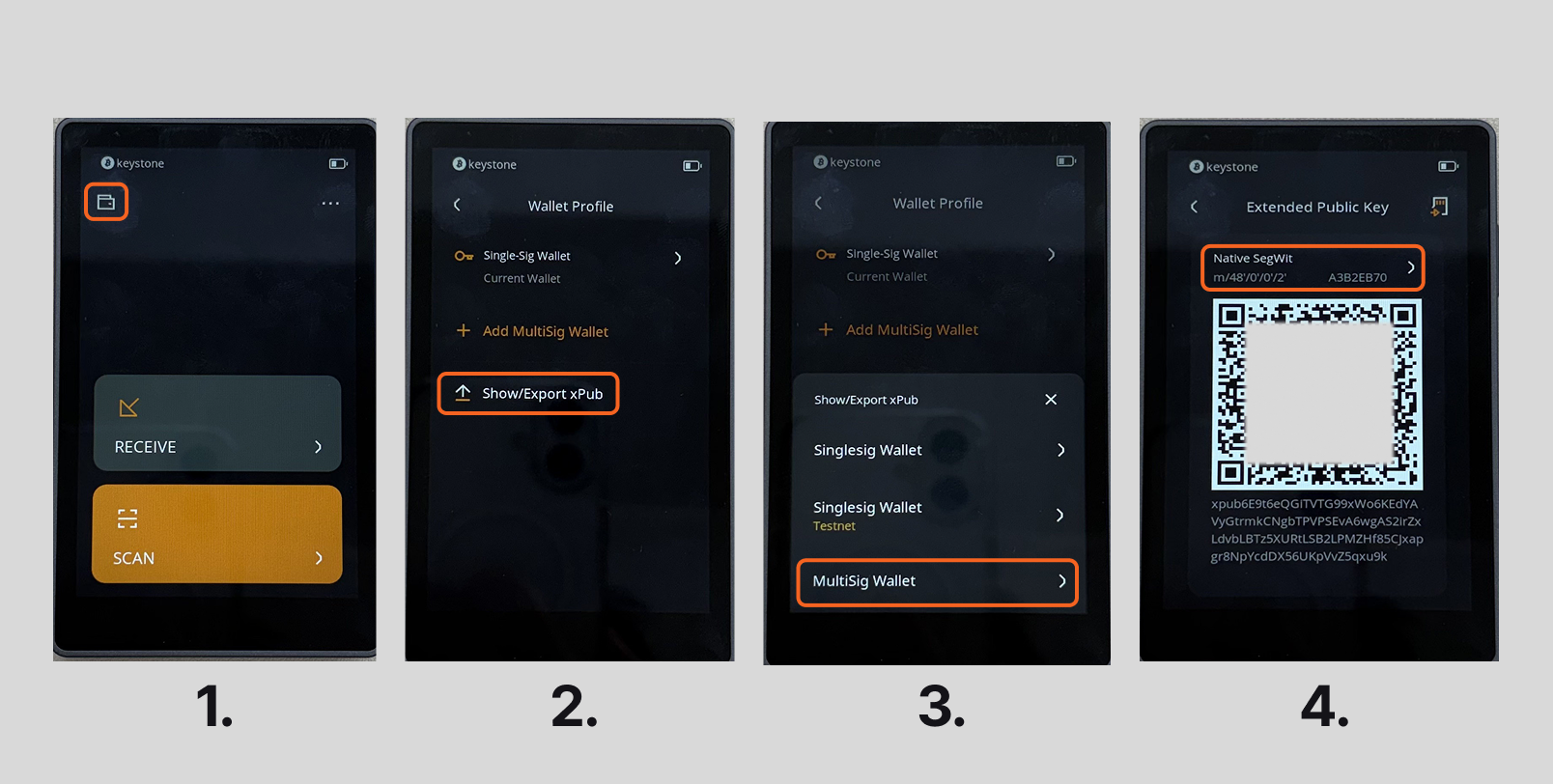
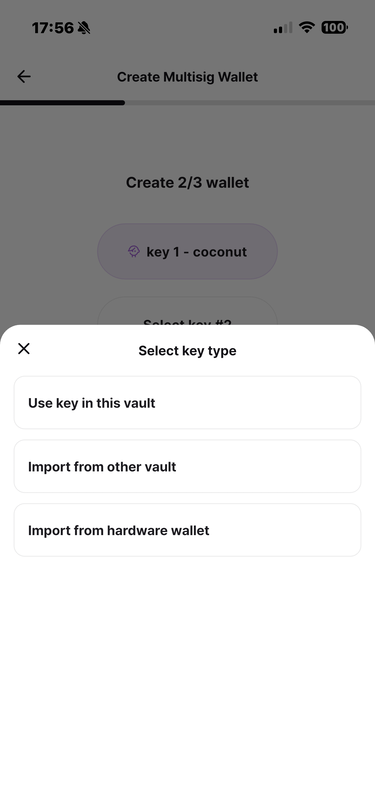
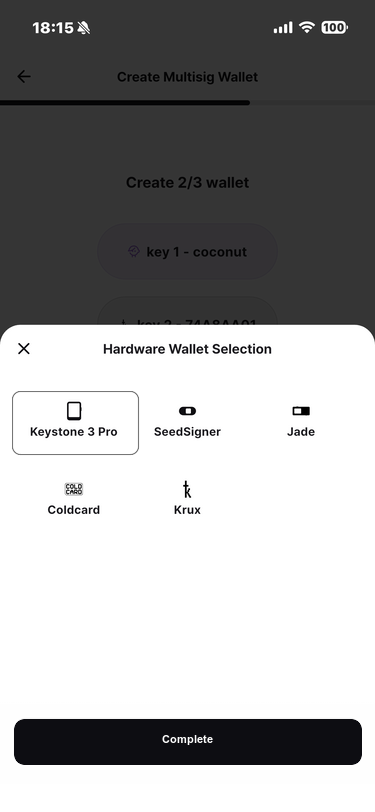
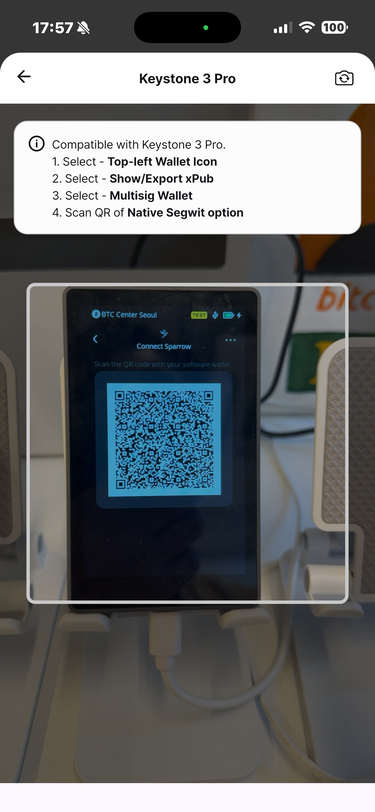
Key 3: Import from a hardware wallet (SeedSigner)
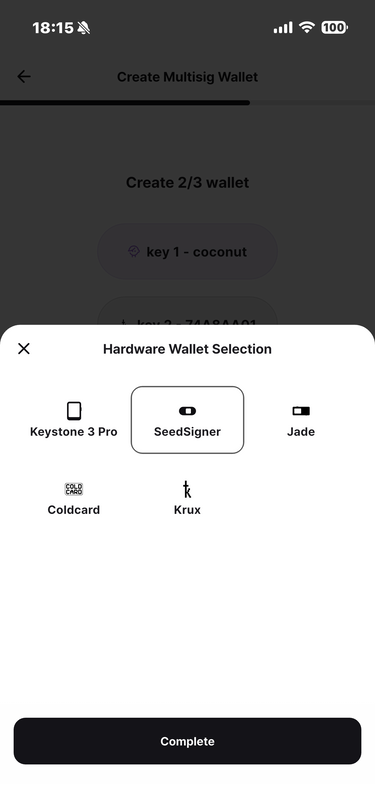
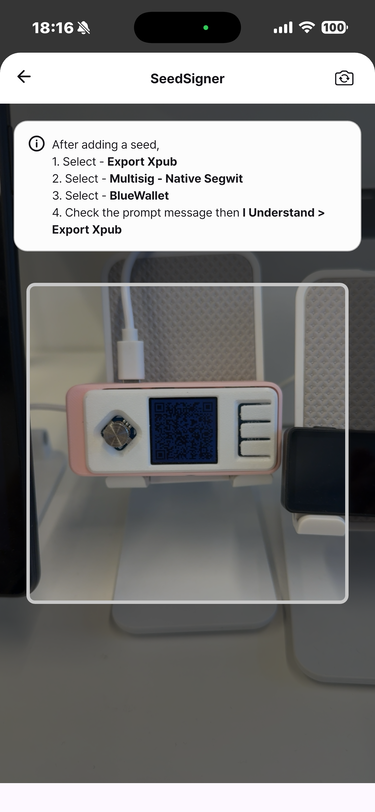
After all keys are selected, tap [Next].
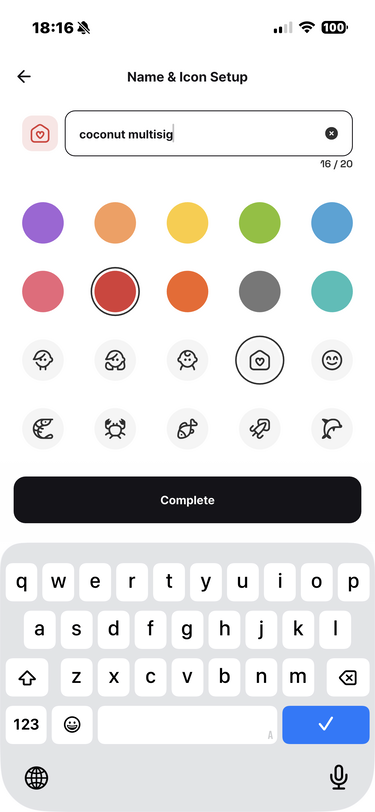
Set the wallet name, icon, and color.
Tap [Done] to finish creating the multisig wallet.
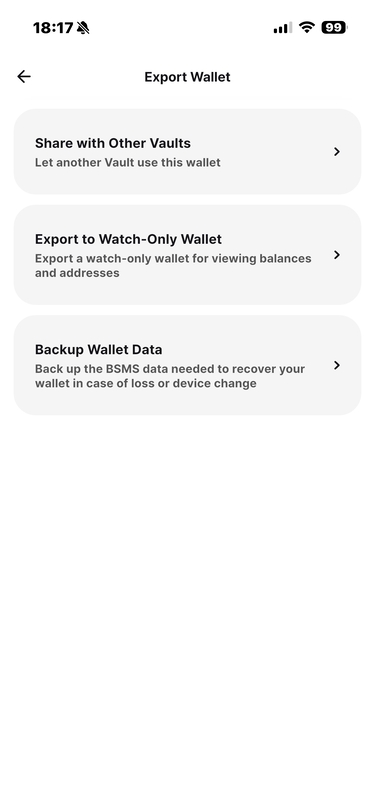
Note [BIP-129 BSMS (Bitcoin Secure Multisig Setup) compliant]
BSMS standardizes how multisig wallet configurations are exchanged. This resolves compatibility problems caused by wallet apps using different setup formats. Coconut's multisig features follow the BSMS standard.
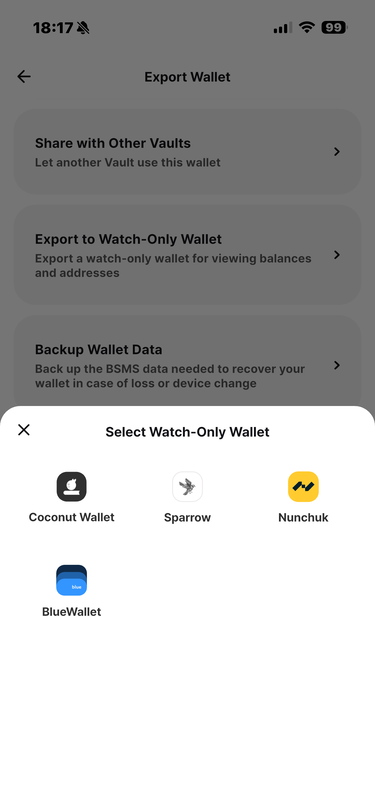
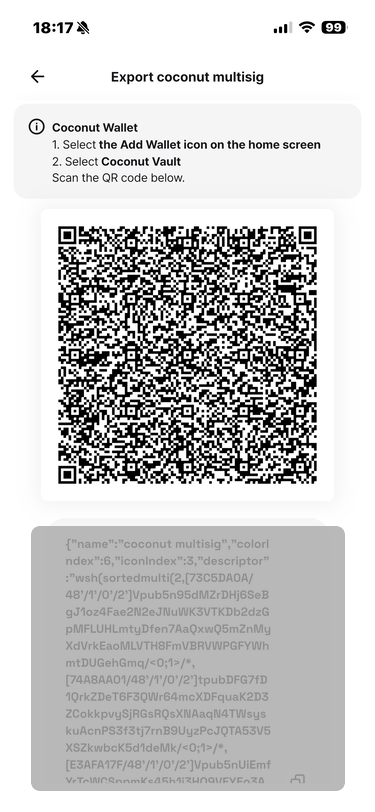
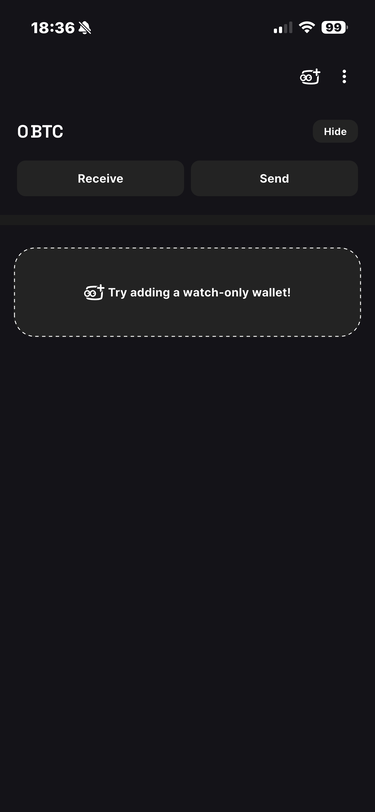
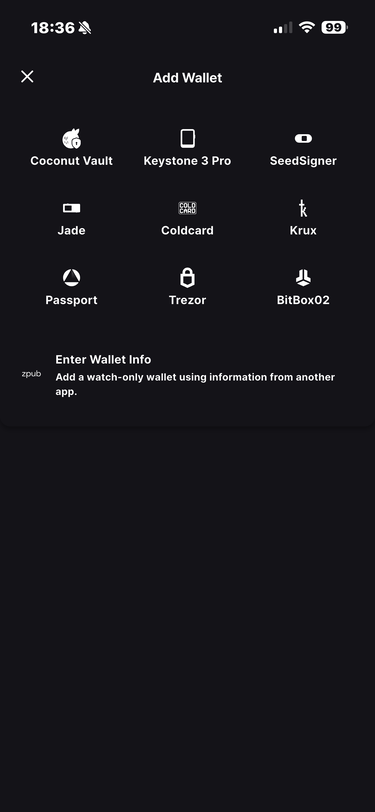
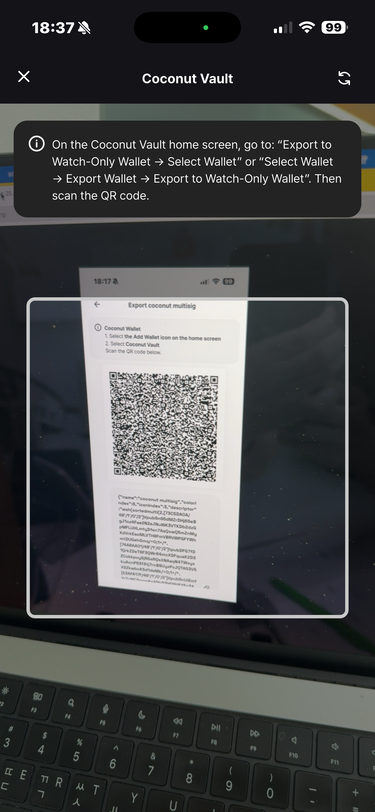
Add the multisig wallet to Coconut Wallet.